
Step-by-step na gabay mula sa pag-login hanggang sa makita mo ang iyong resulta.
A complete guide from login to viewing your review/exam results.
Pumunta sa lms.moodlesync.com gamit ang browser ng iyong computer o cellphone (Chrome, Safari, etc.).
juan.delacruz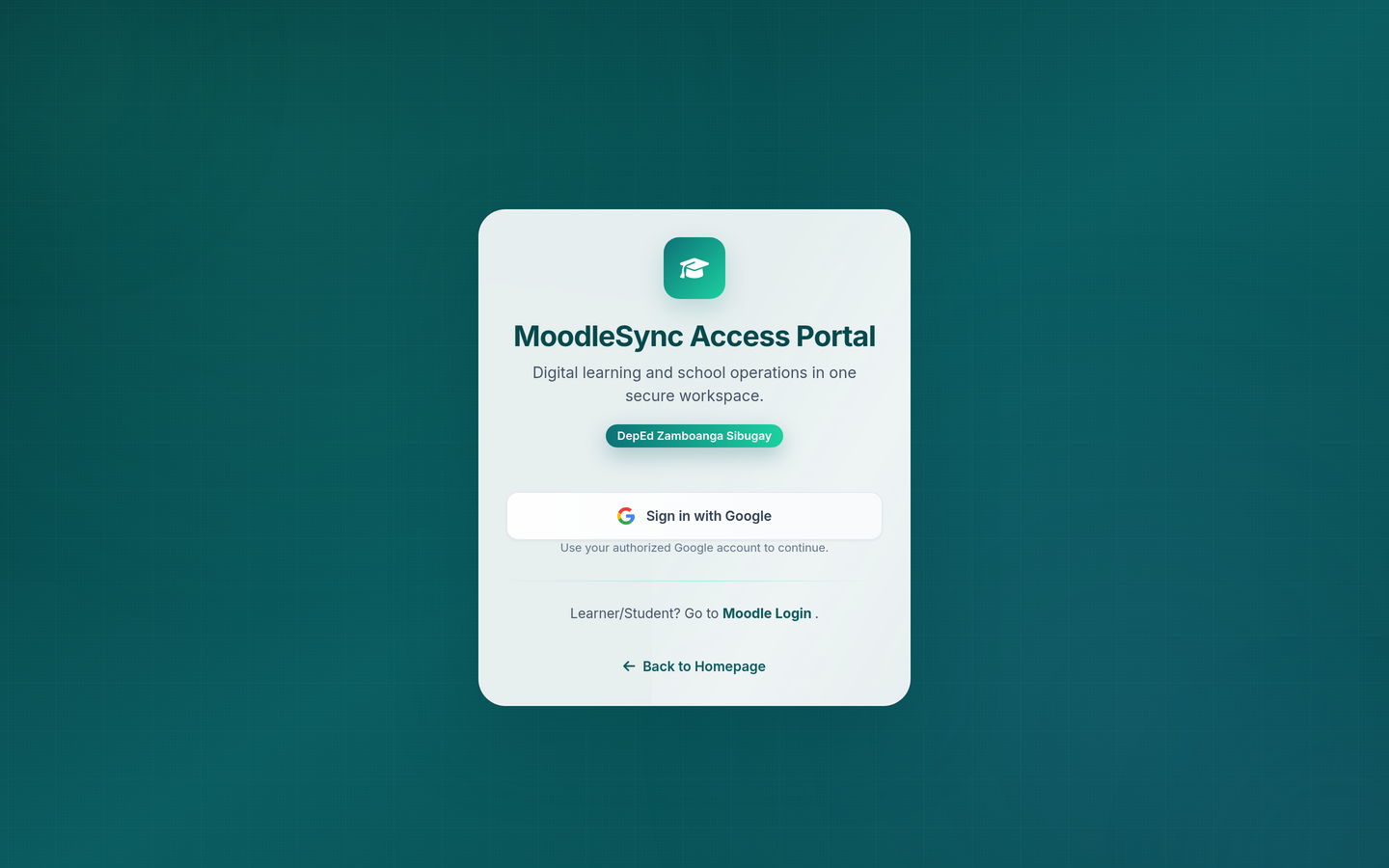 LMS Login Page
Gumamit ng Chrome browser para sa best experience. Kung hindi ka pa may account, humingi sa iyong teacher o school head. Use Chrome for the best experience. If you don't have an account yet, ask your teacher.
Pagkatapos mag-login, makikita mo ang iyong Dashboard. I-click ang "My Courses" sa navigation bar para makita ang lahat ng iyong subjects.
 My Courses — Piliin ang course na may Review/Exam
Kung hindi mo makita ang iyong course, baka hindi ka pa naka-enroll. Sabihin sa iyong teacher para maayos ito. If you can't see your course, you may not be enrolled yet. Ask your teacher to fix this.
Nakita mo na ang iyong course — konti na lang at magsisimula ka na sa review/exam!
Kapag na-click mo na ang course, makikita mo ang mga activities at resources na naka-organize per week o topic. Hanapin ang review/exam activity — may icon na ❓ at may label na "Take" o "🆕".
 Course Page — Hanapin ang Review/Exam Activity
Ang mga review/exam na may "✓ Completed" badge ay natapos mo na. Hanapin ang mga may "Take" o "🆕" label. Reviews/exams already completed will have a checkmark. Look for "Take" or "New" labels.
Bago simulan ang review/exam, makikita mo muna ang review/exam information — kasama ang time limit, bilang ng questions, at ilang attempts ang allowed. Basahin muna ito nang mabuti!
 Review/Exam Info — I-click "Attempt Now"
Kapag sinimulan mo na ang review/exam, magsisimula na ang timer. Huwag i-close o i-refresh ang browser habang sumasagot. Siguraduhing stable ang iyong internet connection.
Once you start the review/exam, the timer begins. Do not close or refresh the browser. Make sure your internet is stable.
Malapit ka na — sumagot nang maayos at huwag magmadali. Basahin ang bawat tanong nang mabuti.
Ngayon ay nasa review/exam ka na! Makikita mo ang mga tanong isa-isa. Gamitin ang Quiz Navigation panel sa kaliwa para makita kung ilang tanong na ang nasagutan mo.
 Sumasagot ng Review/Exam — Answer Questions Carefully
Basahin ang buong tanong bago sumagot. Read the full question first.
Huwag gumastos ng masyadong matagal sa isang tanong. Watch your time.
Flagged questions mo balikan mamaya bago mag-submit. Flag unsure questions.
Huwag isara o i-refresh ang browser — mawawala ang iyong sagot. Don't close the browser.
Kapag nasagutan mo na ang lahat ng tanong, i-click ang "Submit All and Finish" o "Finish Attempt" button. Review mo muna lahat ng sagot bago mag-submit!
After answering all questions, click "Submit All and Finish." Review your answers before submitting!
Pagkatapos mo mag-submit, agad mong makikita ang iyong review/exam results. Makikita mo ang iyong score, kung pumasa ka, at ang mga tamang sagot.
 Review/Exam Results — Tingnan ang Score at Review
I-review ang mga maling sagot para matuto ka sa mga pagkakamali. Ang pagkakamali ay bahagi ng pag-aaral!
Review wrong answers to learn from mistakes. Making mistakes is part of learning!
Kung may tanong ka tungkol sa iyong score o gusto mong malaman ang tamang sagot sa mga na-wrong mo, kausapin ang iyong teacher. If you have questions about your score or want to understand incorrect answers, talk to your teacher.
Alam mo na ngayon kung paano mag-take ng review/exam sa LMS. Galingan mo sa mga review/exam — kaya mo 'yan! 🌟
You now know how to take reviews/exams on the LMS. Do your best — you've got this!
Kung may problema ka sa pag-login o pag-take ng review/exam, huwag mag-alinlangan na humingi ng tulong:
Sabihin sa iyong teacher o school ICT coordinator na i-reset ang iyong password. Sila lang ang makaka-reset nito. Ask your teacher or school ICT coordinator to reset your password.
Huwag mag-panic! Kadalasan ina-auto-save ng Moodle ang iyong mga sagot. Kapag bumalik ang internet, i-try mong mag-login ulit at buksan ang review/exam — baka makita mo pa ang mga naisagot mo na. Sabihin sa teacher mo kung may problema pa. Don't panic! Moodle usually auto-saves your answers. Try logging back in and opening the review/exam. Tell your teacher if there are still issues.
Depende sa setting ng teacher. May mga review/exam na may 1 attempt lang, may mga 2 o unlimited attempts. Makikita mo ito sa review/exam information page bago mag-start. Kung kailangan mo ng additional attempt, kausapin ang iyong teacher. It depends on the teacher's settings. Some reviews/exams allow multiple attempts. Talk to your teacher if you need another try.
Baka hindi pa open ang review/exam o hindi mo pa siya accessible ayon sa schedule ng teacher. Check mo rin kung enrolled ka talaga sa course. Kausapin ang teacher mo para ma-confirm. The review/exam may not be open yet or may be restricted by schedule. Make sure you're enrolled in the course and talk to your teacher.
Oo! Pwede kang gumamit ng cellphone, tablet, o computer. Mas mabuti kung gumamit ka ng Chrome browser at stable na internet. I-turn on ang "Desktop mode" sa browser kung maliit ang display. Yes! You can use phone, tablet, or computer. Use Chrome browser with stable internet for the best experience.
Magtanong muna sa iyong teacher o school ICT coordinator. Kung hindi nila maayos, pwede rin sila mag-contact kay Jonas Mandalunes (jonas.mandalunes@deped.gov.ph) o Marcion Manlin (marcion.manlin@deped.gov.ph) sa Division Office. Ask your teacher or ICT coordinator first. They can reach out to the Division Office if needed.