Official Tutorial Guide • Step-by-Step

MoodleSync Access Portal
Tutorial Guide

A step-by-step guide for school heads, principals, and teachers on how to download student accounts (LRN & passwords) and view assessment results — para sa ating mga minamahal na mag-aaral.

"Gabay para sa ating mga Guro, School Heads, at Principals — dahil bawat hakbang na ito ay para sa kinabukasan ng ating mga mag-aaral sa Zamboanga Sibugay."

Simulan ang Tutorial

Maligayang Pagdating, Mga Guro at School Heads!

Welcome to the MoodleSync Access Portal tutorial. This guide was made with love and care specifically for the educators and school leaders of the Division of Zamboanga Sibugay. We know how dedicated you are to your learners — and this portal is here to make your work easier.

"Ginawa po ito nang may pagmamahal para sa ating mga guro at school heads sa Zamboanga Sibugay. Alam namin kung gaano kayo kasipag at ka-dedikado sa ating mga mag-aaral — nandito po kami upang tulungan kayo."

5
Easy Steps
~5 min
To Complete
Works on Phone
1
Unang Hakbang

Open the MoodleSync Portal & Sign In with Google

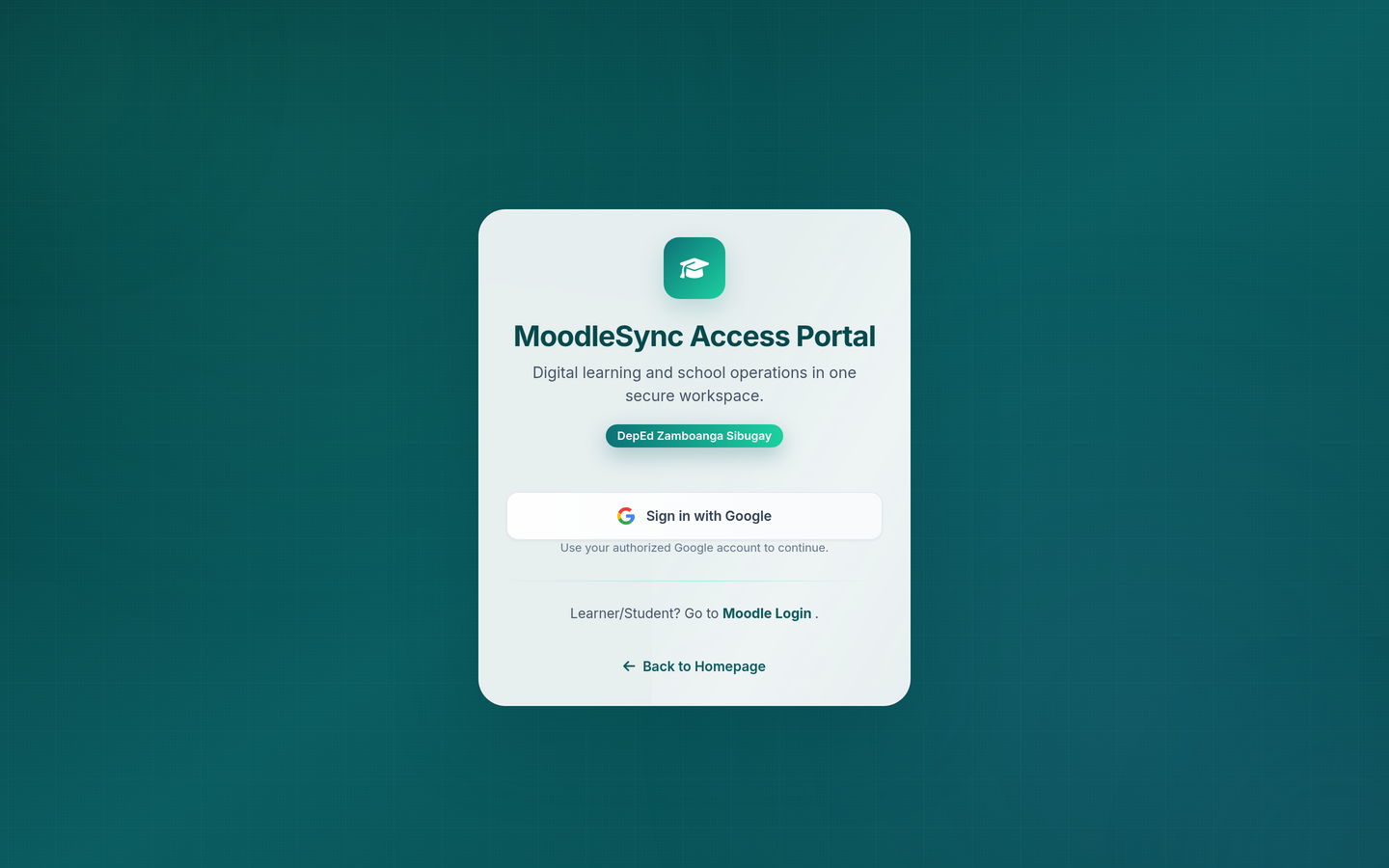
Visit the MoodleSync Portal and sign in using your DepEd Google Account (principal or school email).

Buksan ang portal at mag-sign in gamit ang inyong DepEd Google Account.

zsibugaymoodlesync.com/portal/
MoodleSync Portal Login Page
I-click ang "Sign in with Google"

Open Your Browser

Open Chrome, Edge, or any modern browser and go to https://zsibugaymoodlesync.com/portal/

Buksan ang Chrome o Edge at i-type ang link sa itaas.

Click "Sign in with Google"

Click the Google sign-in button. A Google account chooser will appear for you to select your account.

I-click ang "Sign in with Google" button sa login page.

Select Your DepEd Account

Choose your authorized principal email or school DepEd email (e.g., principal@deped.gov.ph). Only authorized accounts can access the portal.

Piliin ang inyong authorized DepEd email. Tanging mga authorized accounts lamang ang makakapag-access.

accounts.google.com
Google Account Chooser

Tip / Paalala

Make sure you are using your official DepEd email, not a personal Gmail account. If you encounter access issues, contact the Division ICT team.

Siguraduhin na DepEd email ang ginagamit ninyo, hindi personal na Gmail.

2
Pangalawang Hakbang

Navigate to "View Students" in the Sidebar

After signing in, you'll see the portal dashboard. Click "View Students" in the left sidebar to access student accounts.

Pagkatapos mag-sign in, i-click ang "View Students" sa sidebar para makita ang listahan ng mga mag-aaral.

zsibugaymoodlesync.com/portal/dashboard
Portal Dashboard - View Students in Sidebar

Locate the Left Sidebar

Look at the left side of the screen. The sidebar shows all navigation options available to you.

Tingnan ang kaliwang bahagi ng screen — nandoon ang sidebar menu.

Click "View Students"

Under "Student Management", click "View Students". This page shows the student list with their LRN and passwords.

Sa ilalim ng "Student Management", i-click ang "View Students" para makita ang LRN at password ng mga mag-aaral.

🌟

Mahusay! You're Doing Great!

You've completed the first two steps — signing in and navigating the portal. The next steps will show you how to find and download your students' accounts.

Natapos na ninyo ang unang dalawang hakbang! Sunod naman: paano hanapin at i-download ang accounts ng inyong mga mag-aaral.

3
Pangatlong Hakbang

Filter by Grade & Section, Then View Accounts

Use the filter dropdowns to select a Grade Level and Section. The table below will display each student's LRN (username) and password.

Gamitin ang mga filter para pumili ng Grade Level at Section. Lalabas ang listahan ng LRN at password ng bawat mag-aaral.

zsibugaymoodlesync.com/portal/view-students
Student List with LRN and Passwords

Select Grade Level

From the Grade Level dropdown, choose the grade you need (e.g., Grade 7, Grade 8, etc.).

Pumili ng Grade Level mula sa dropdown.

Select Section

Choose the Section from the next dropdown (e.g., Rizal, Mabini, etc.).

Piliin ang Section, halimbawa: Rizal, Mabini, atbp.

Click "Apply" to Filter

Click "Apply" to load the filtered student list. The table will show each student's full name, LRN (username), and their password.

I-click ang "Apply" para ma-filter ang listahan. Lalabas ang pangalan, LRN (username), at password ng bawat mag-aaral.

Tip / Paalala

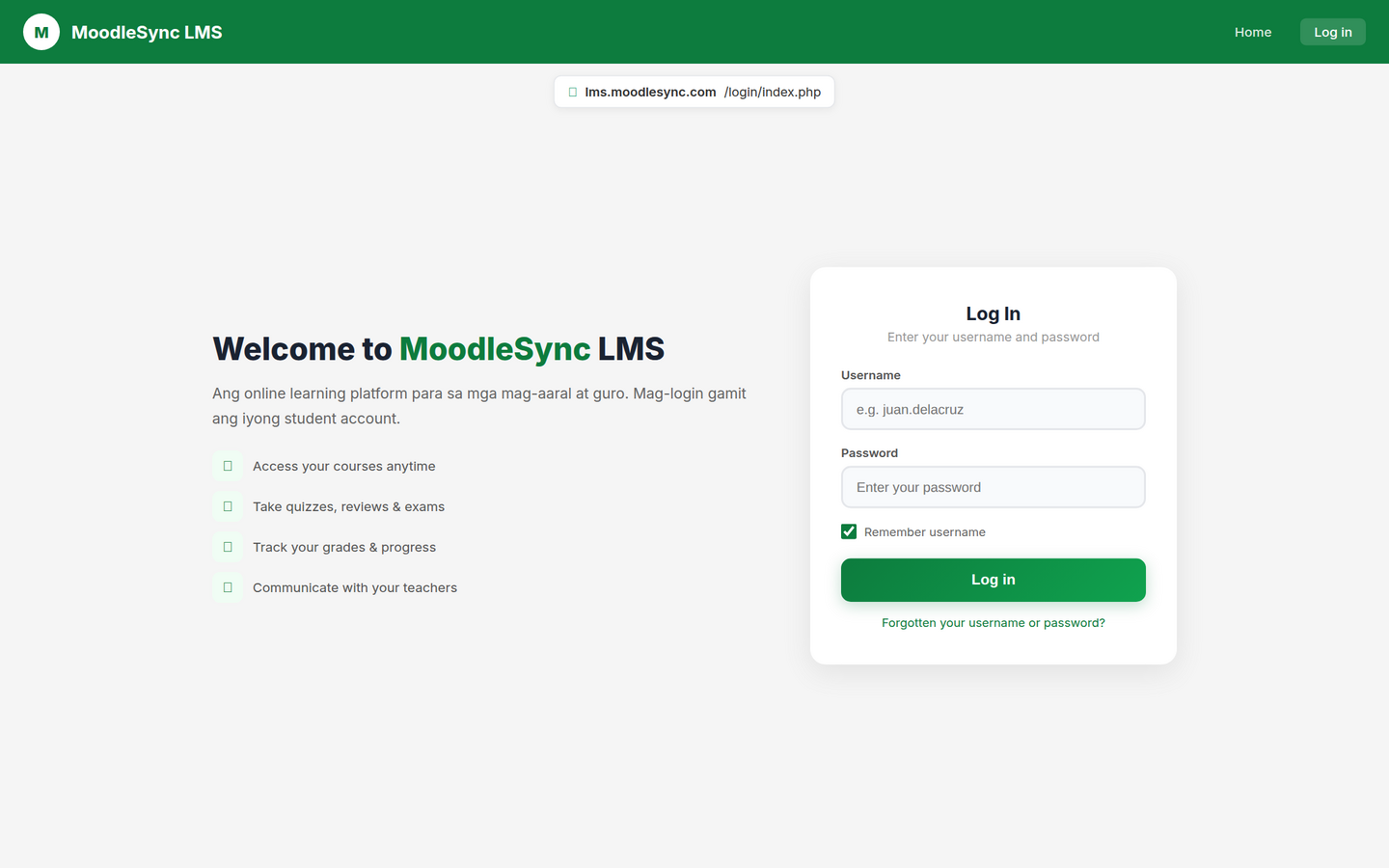
The student's LRN is their username for logging into Moodle LMS at lms.zsibugaymoodlesync.com. The password shown in the table is their initial login password.

4
Pang-apat na Hakbang

Download & Distribute Student Accounts Securely

Download the student list or copy passwords directly from the table. Then distribute each student's credentials individually and privately.

I-download ang listahan o kopyahin ang password. Ipamahagi ang credentials nang isa-isa at pribado sa bawat mag-aaral.

Download Learner Accounts

Click the green "Download Learner Accounts" button to export the list as a spreadsheet file.

I-click ang green na "Download Learner Accounts" button para ma-download ang listahan bilang spreadsheet.

Or View Directly in the Table

You can also view student passwords directly in the table on screen without downloading.

Pwede rin tingnan ang password nang direkta sa table sa screen.

Distribute Privately to Each Learner

Give each student their password individually. Never share it in group chats or post it publicly.

Ibigay ang password sa bawat mag-aaral nang isa-isa. Huwag i-post sa group chats o bulletin boards para sa kanilang kaligtasan.

Mahalaga: Paalala Bago Ipamahagi!

  • DO: Verify each student's LRN matches their official school records
  • DO: Distribute passwords individually and privately to each learner
  • DO: Advise students to change their password after first login
  • DON'T: Post passwords on bulletin boards, group chats, or social media
  • DON'T: Let students see other students' passwords
  • DON'T: Share credentials through unsecured messaging apps
Password Distribution Best Practices
🎉

Natapos na ang Part A! Part A Complete!

Excellent! You now know how to download your students' accounts. Remember: distribute passwords privately to protect every learner's security. Ready for Part B?

Mahusay! Alam na ninyo kung paano i-download ang accounts ng mga mag-aaral. Tandaan: ibigay ang password nang pribado sa bawat isa. Handa na ba kayo para sa Part B?

Part B: Viewing Assessment Results

Parehong proseso ng pag-login — gamitin ang inyong DepEd Google Account

Same login process — use your Principal / School DepEd email via Google Sign-In

5
Ikalimang Hakbang

View & Download Assessment Results

Navigate to "Assessment Results" in the sidebar. Use filters to search by district, school, grade, section, and subject.

I-click ang "Assessment Results" sa sidebar. Gamitin ang mga filter para piliin ang district, school, grade, at section.

Sign In (Same Process as Part A)

Go to https://zsibugaymoodlesync.com/portal/ and sign in using your DepEd Google Account — same process as Steps 1-2 above.

Mag-sign in gamit ang parehong proseso sa Part A (Steps 1 at 2).

Click "Assessment Results" in the Sidebar

In the left sidebar, under "Assessment", click "Assessment Results".

Sa sidebar, sa ilalim ng "Assessment", i-click ang "Assessment Results".

Apply Filters

Select your District, School, Grade Level, Section, and optionally a Subject. Then click "Apply Filters".

Piliin ang District, School, Grade, at Section. Pagkatapos, i-click ang "Apply Filters".

Download PDF or View Results On-Screen

Click "Download PDF Report" to save a copy, or simply review the scores and status directly in the table.

I-click ang "Download PDF Report" para i-save, o tingnan ang results nang direkta sa table.

zsibugaymoodlesync.com/portal/assessment-results
Assessment Results Page

Quick Reference Summary

Mabilisang gabay — i-print o i-save para sa reference

Part A: Student Accounts

  1. Go to zsibugaymoodlesync.com/portal/
  2. Sign in with your DepEd Google Account
  3. Click "View Students" in sidebar
  4. Filter by Grade Level and Section
  5. Click "Apply"
  6. Download or view passwords in the table
  7. Distribute passwords privately to each learner

Part B: Assessment Results

  1. Go to zsibugaymoodlesync.com/portal/
  2. Sign in with your DepEd Google Account
  3. Click "Assessment Results" in sidebar
  4. Filter by District, School, Grade, Section
  5. Click "Apply Filters"
  6. Download PDF or view results in the table

Frequently Asked Questions

Mga madalas na tanong tungkol sa MoodleSync Portal

What email should I use to sign in?
Use your official DepEd Google Account — either your principal email or school email (e.g., principal@deped.gov.ph). Personal Gmail accounts will not work.

Gamitin ang inyong official DepEd Google Account. Hindi gagana ang personal na Gmail.
I can't see the "View Students" option in the sidebar?
This means your Google account may not be authorized yet. Please contact the Division ICT team to have your email address added to the list of authorized portal users.

Hindi pa authorized ang email ninyo. Makipag-ugnayan sa Division ICT team para ma-add ang inyong account.
Where do my students use their LRN and password?
Students use their credentials at the Moodle LMS at lms.zsibugaymoodlesync.com. Their username is their LRN, and the password is what's shown in the portal table.

Ang mga mag-aaral ay gagamit ng kanilang LRN bilang username at ang password mula sa portal table para mag-login sa Moodle LMS.
Can I access the portal on my phone?
Yes! The MoodleSync Portal is mobile-friendly. You can access it from any smartphone, tablet, or computer with an internet connection.

Oo! Pwedeng gamitin ang portal sa cellphone, tablet, o computer — basta may internet connection at modern browser.
A student forgot their password. What should I do?
You can look up the student's password again through the portal (View Students, filter by their grade and section). If the password needs to be reset, contact the Division ICT team for assistance.

Pwede ulit tingnan ang password sa portal. Kung kailangan i-reset, makipag-ugnayan sa Division ICT team.
Who can I contact for technical support?
For any technical issues, please reach out to:
Para sa mga teknikal na katanungan, makipag-ugnayan kay Sir Jonas o Sir Marcion sa Division ICT Unit ng DepEd Zamboanga Sibugay.
🏆

Congratulations! Tutorial Complete!

You now know how to download student accounts and view assessment results through the MoodleSync Access Portal. Thank you for your dedication to the learners of Zamboanga Sibugay — your effort today helps shape their tomorrow.

"Salamat sa inyong dedikasyon sa mga mag-aaral ng Zamboanga Sibugay. Ang inyong pagsisikap ngayon ay tumutulong sa paghubog ng kanilang kinabukasan."

Need Help? Kailangan ng Tulong?

Jonas Mandalunesjonas.mandalunes@deped.gov.ph
Marcion Manlinmarcion.manlin@deped.gov.ph
Division ICT Unit — DepEd Zamboanga Sibugay